Snooze
Hide the tab now. Pick a time. Get it back when it matters.
 Amazon - Cart (3)
Never lose a tab again
Snooze tabs like emails — they come back exactly when you need them. Full power on one device, free. Optional Cloud Sync if you use more than one.
I was tired of losing tabs. Tried every solution — none felt right. So I built what I actually want to use. — Patlakh, creator
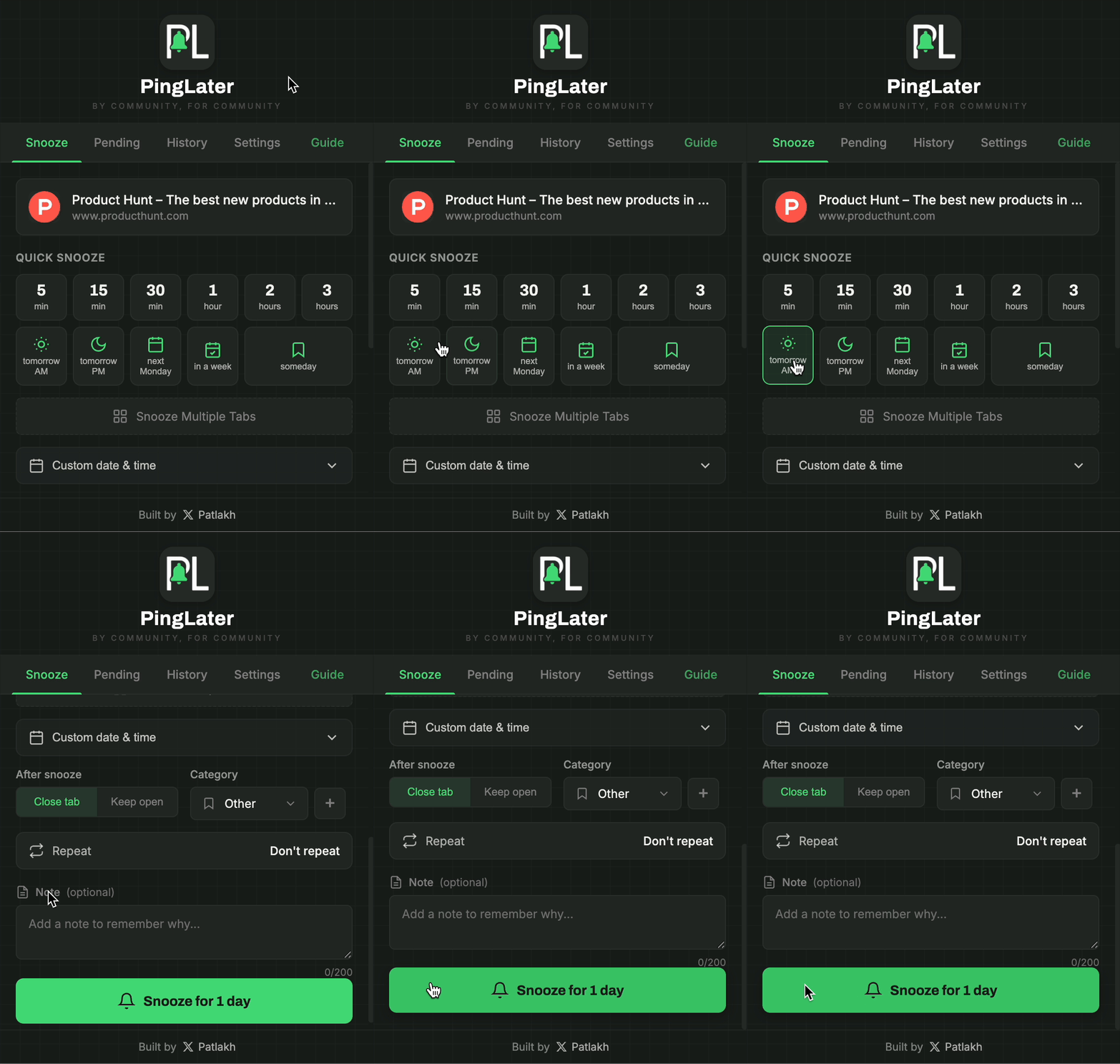
Two clicks — tab comes back when you need it
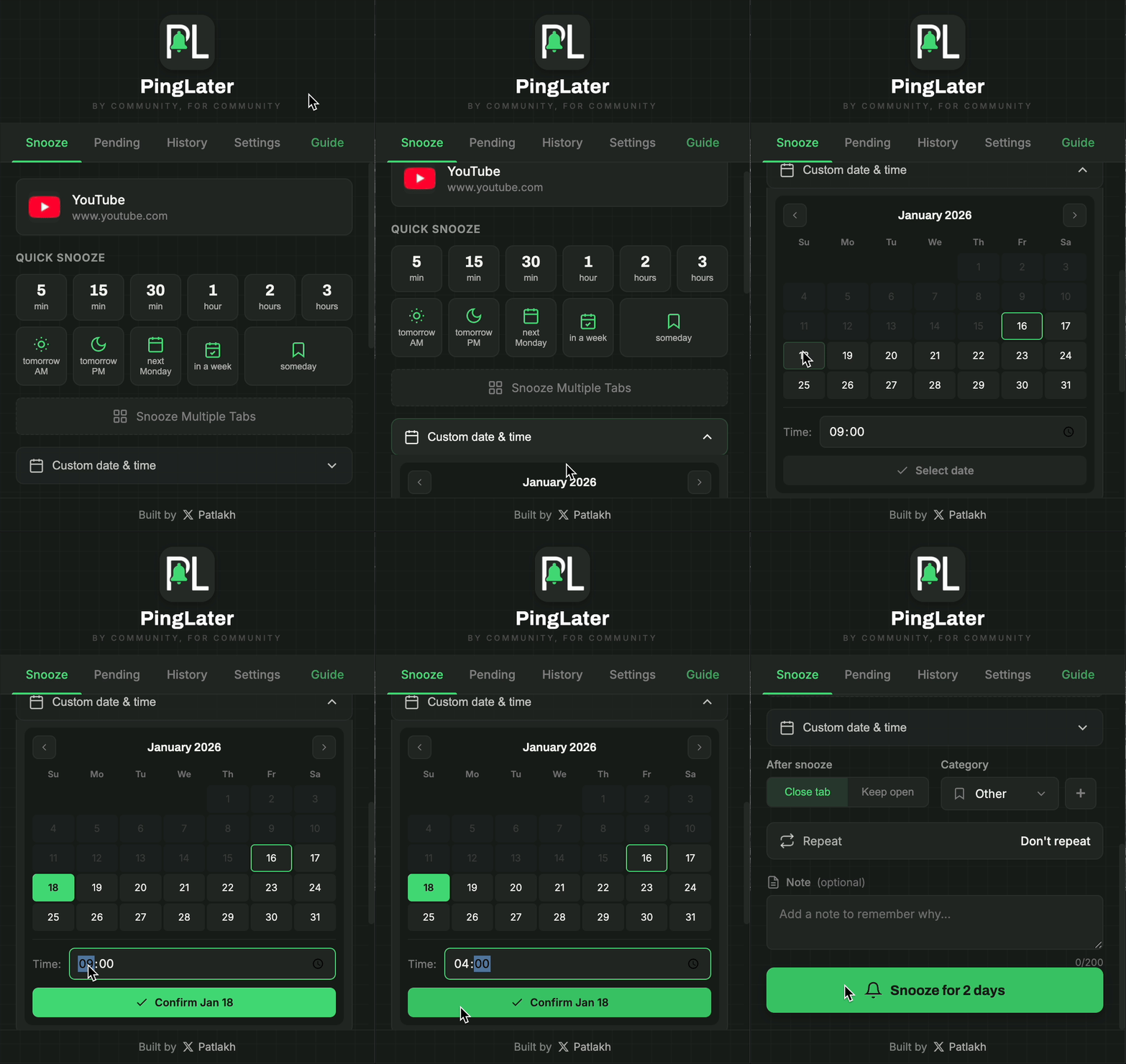
Pick any date and exact time for your reminder
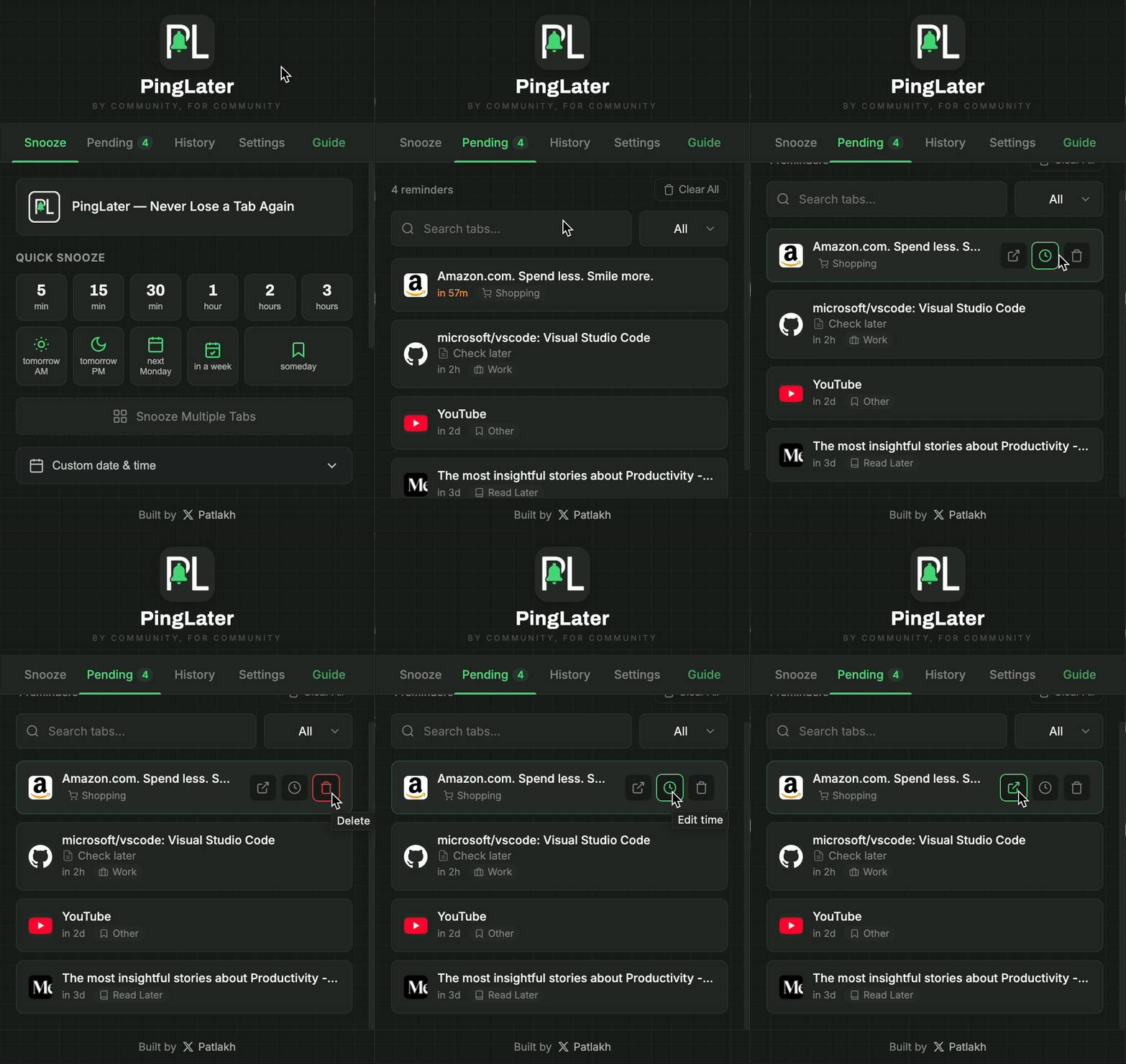
All snoozed tabs in one place, ready to manage
Hide the tab now. Pick a time. Get it back when it matters.
Recurring, notes, categories, multi-tab groups — all local, all free.
Save a window and restore it later. Autosave if you want a safety net.
Same license on up to 5 devices. 14-day free trial. Other devices catch up when you open PingLater — or tap Sync now.
Everything above works offline without an account. Sync is the only paid piece — and only if you want it.
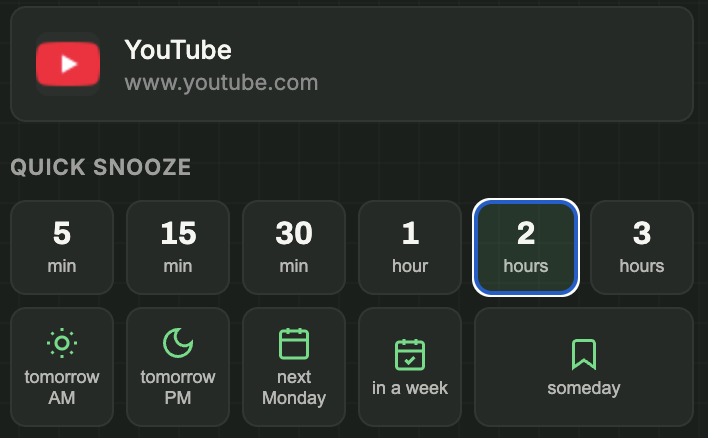
Click the PingLater icon and choose when you want the tab back.
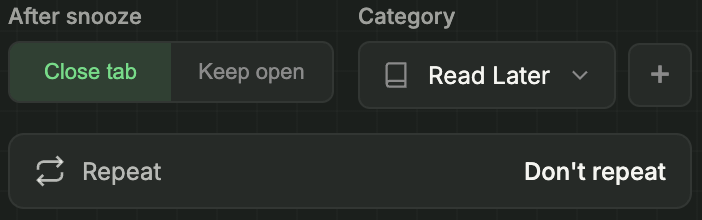
Keep tab open, pick a category, or set up recurring reminders.
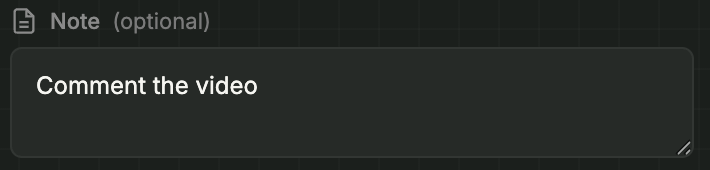
Leave yourself a reminder why you saved this tab.
One click and your tab is scheduled. Done.

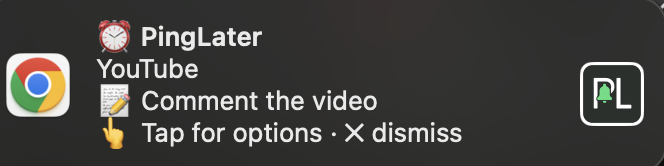
Your tab reopens with a notification. Need more time? Reschedule right from the popup.
Right-click anywhere on a page to quickly snooze without opening the extension.
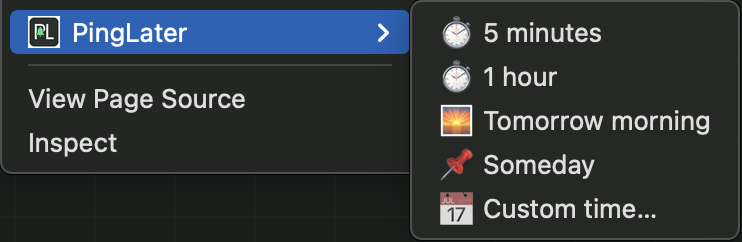
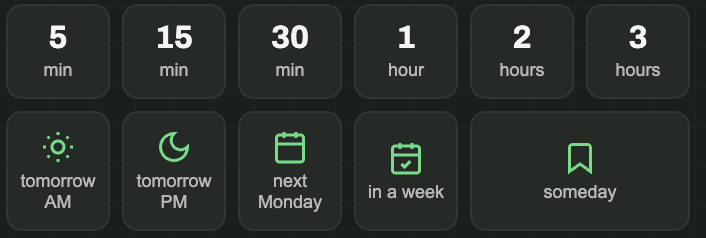
One click to snooze — or save to "Someday" for later. Tab closes or stays open.
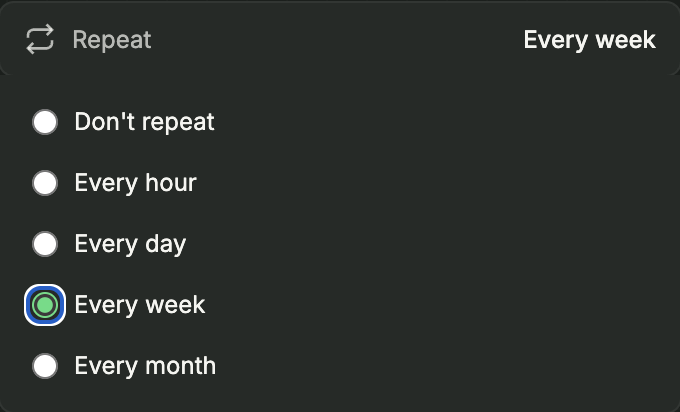
Set hourly, daily, weekly, or monthly repeating reminders.
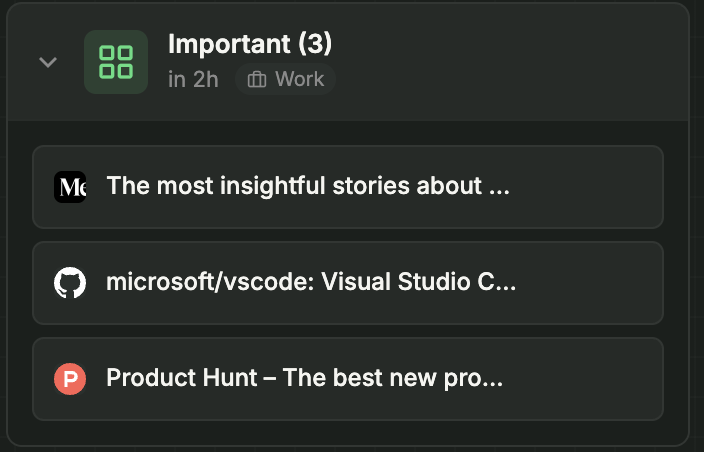
Snooze multiple tabs at once. Name your groups for easy organization.
Missed a reminder? No problem. It'll fire when you're back online.
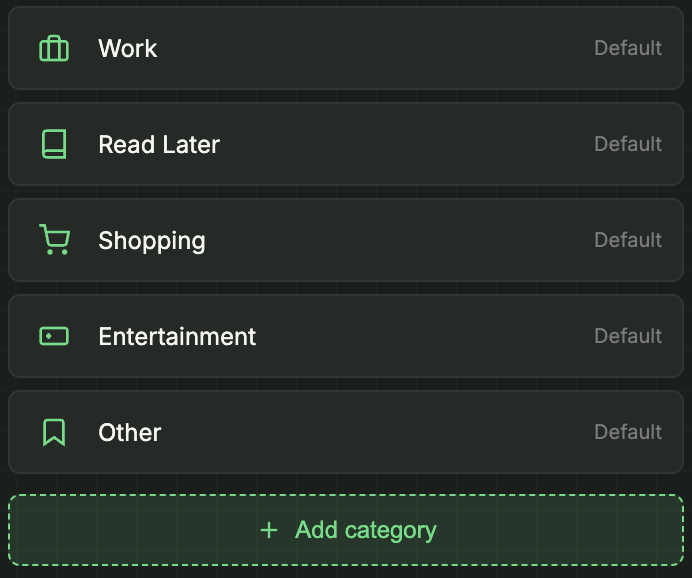
Organize with custom categories: Work, Read Later, Shopping — you name it.
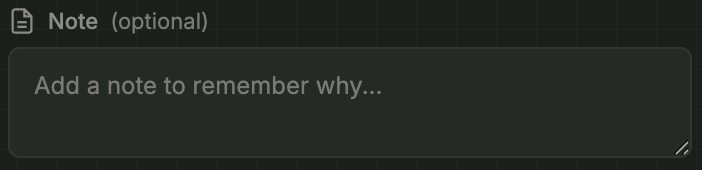
Add a note to remember why you saved it. Shows up in the notification.
Free PingLater stays on this browser. Pro syncs snoozed tabs, sessions, history, categories, and settings across your devices — when you choose. Start with a 14-day free trial.
Already have a key? Open Settings → Cloud Sync (Pro) → Activate.
Notifications not appearing?
Notifications not appearing?
Still having issues? Make sure Chrome is updated to the latest version and try restarting your browser.
Join the community of people who finally have their tabs under control.