YouTube - Watch Later...
LinkedIn - New Messages
Medium - Must Read...
Twitter - Trending
Amazon - Cart (3)
Gmail - Important
Steam - Weekend Sale
Notion - Project Notes
Google Docs - Draft
Spotify - Discover

PingLater

Never lose a tab again

Snooze tabs like emails — they come back exactly when you need them. Full power on one device, free. Optional Cloud Sync if you use more than one.

Free on one device · No account · Cloud Sync: 14-day free trial How Cloud Sync works →

I was tired of losing tabs. Tried every solution — none felt right. So I built what I actually want to use. — Patlakh, creator

Scroll to explore
See it in action

Clean. Simple. Powerful.

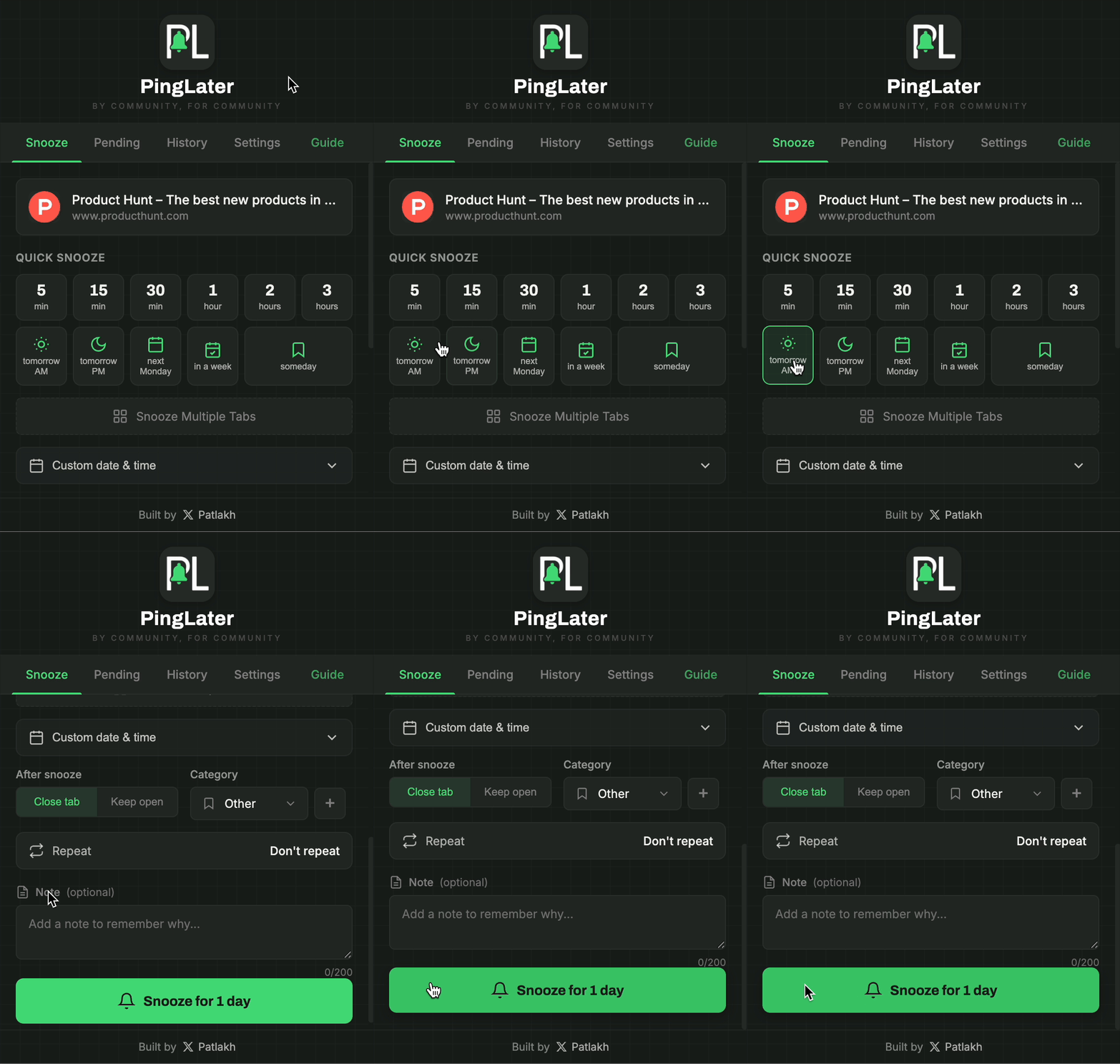
Quick snooze demo

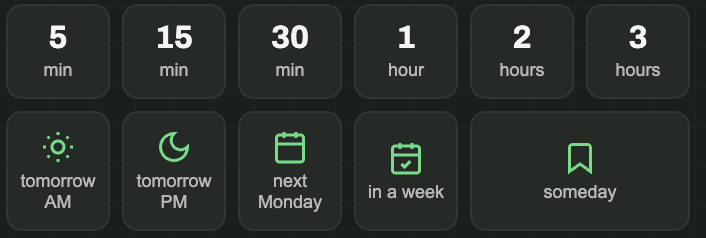
Quick Snooze

Two clicks — tab comes back when you need it

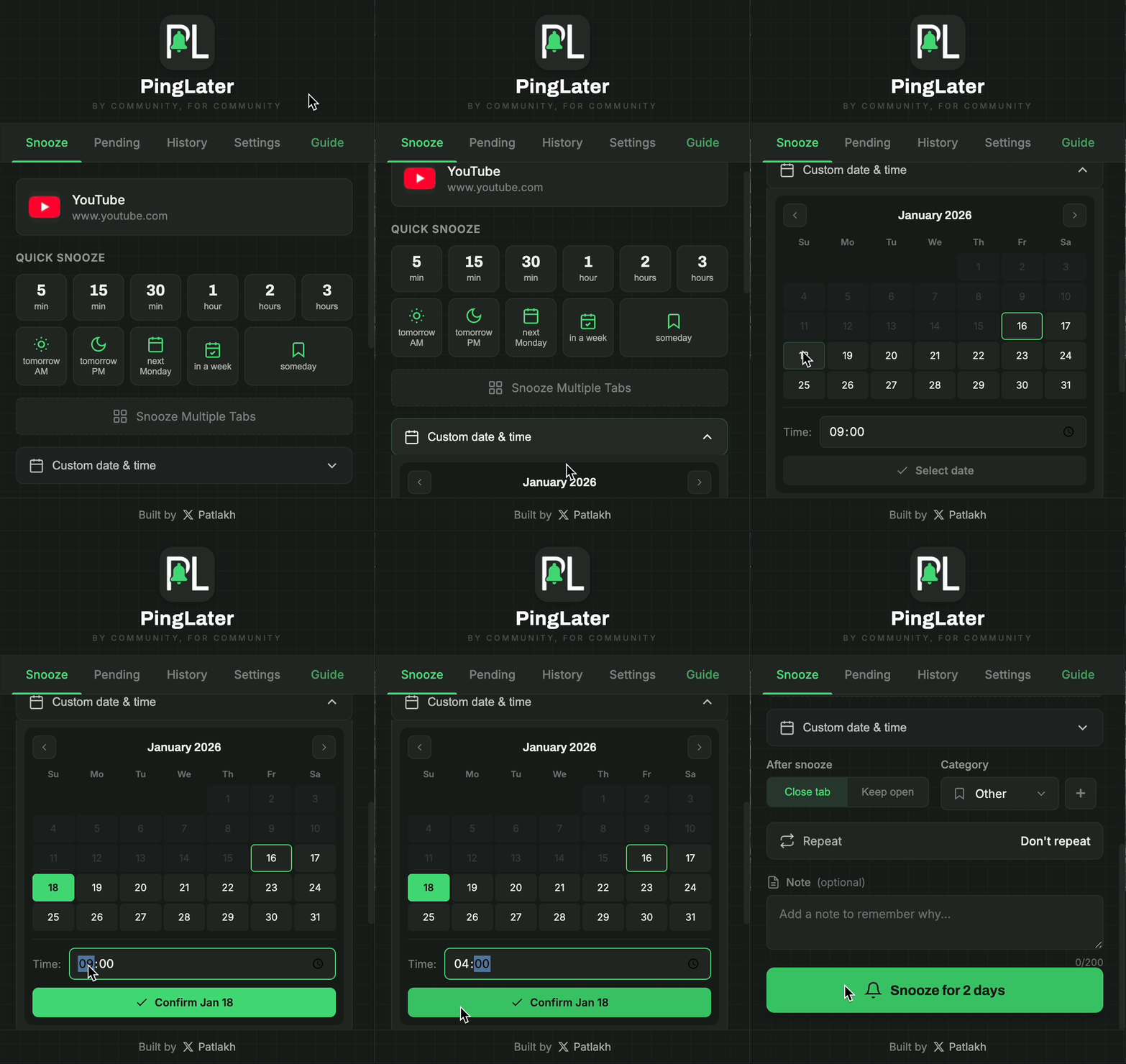
Custom date and time demo

Custom Date & Time

Pick any date and exact time for your reminder

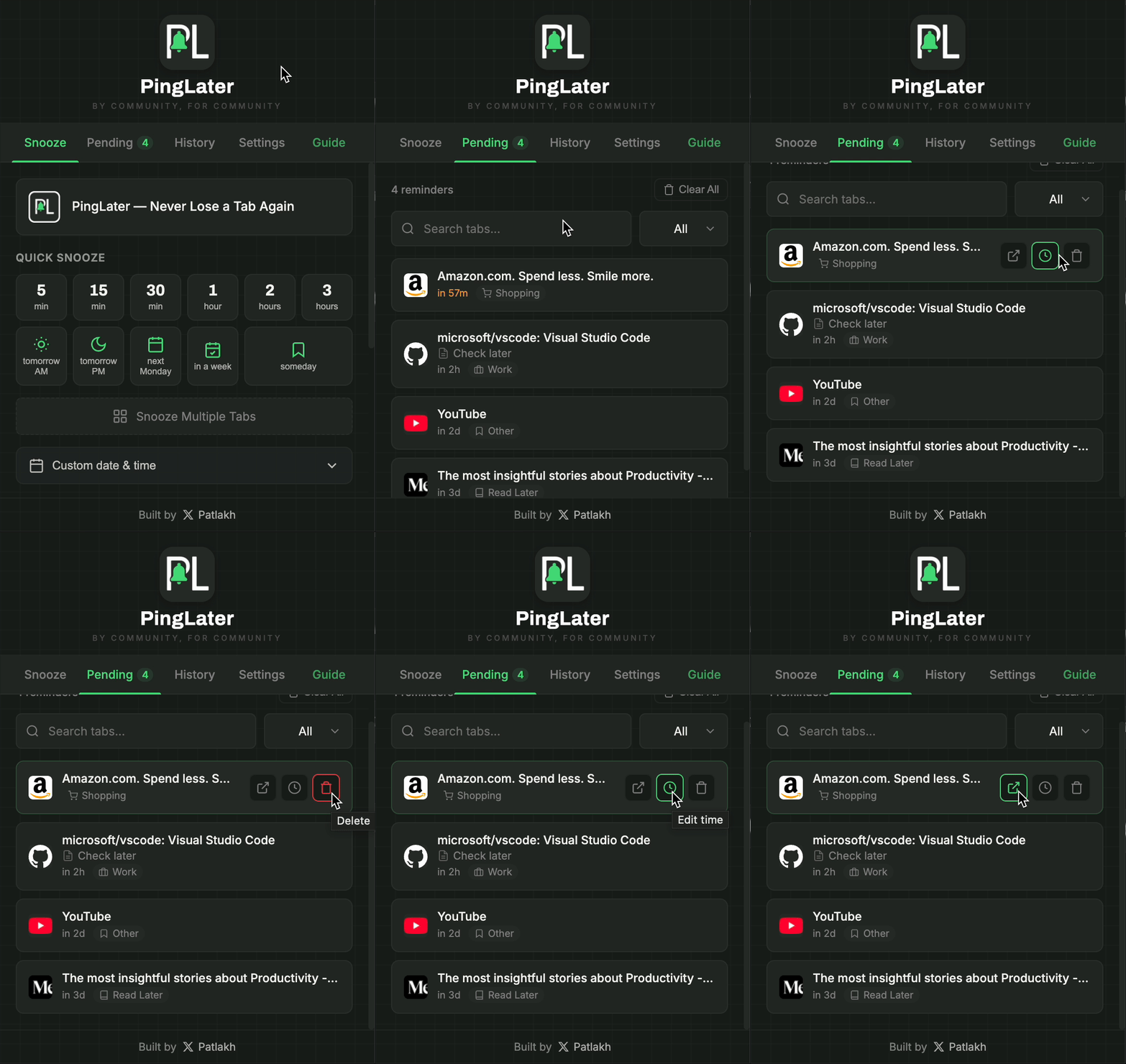
Pending tabs demo

Organized Pending

All snoozed tabs in one place, ready to manage

What you get

One job. Done right.

Snooze

Hide the tab now. Pick a time. Get it back when it matters.

Reminders

Recurring, notes, categories, multi-tab groups — all local, all free.

Sessions

Save a window and restore it later. Autosave if you want a safety net.

Cloud Sync Pro

Same license on up to 5 devices. 14-day free trial. Other devices catch up when you open PingLater — or tap Sync now.

Everything above works offline without an account. Sync is the only paid piece — and only if you want it.

How it works

Three clicks to freedom

1

Open & Pick Time

Click the PingLater icon and choose when you want the tab back.
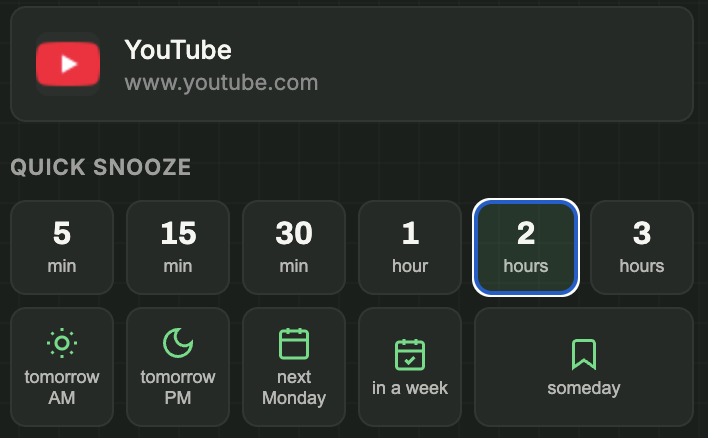
Step 1: Open PingLater and pick time
2
Optional

Customize

Keep tab open, pick a category, or set up recurring reminders.
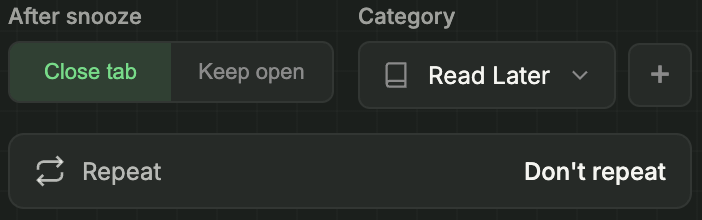
Step 2: Optional settings
3
Optional

Add a Note

Leave yourself a reminder why you saved this tab.
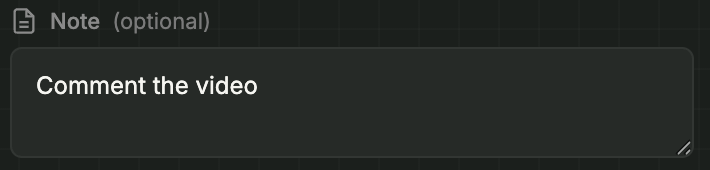
Step 3: Add a note
4

Hit Snooze

One click and your tab is scheduled. Done.

Step 4: Hit Snooze
5

Get Reminded

Your tab reopens with a notification. Need more time? Reschedule right from the popup.
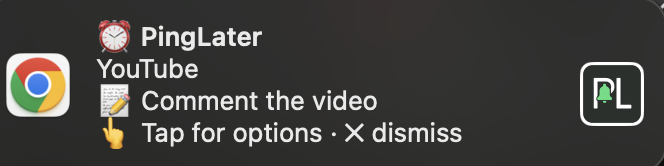
Step 5: Get reminded
💡
Pro tip

Right-Click Snooze

Right-click anywhere on a page to quickly snooze without opening the extension.
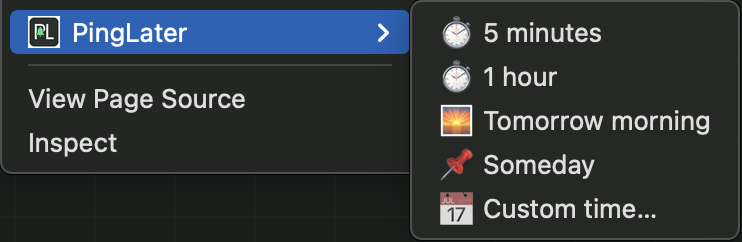
Pro tip: Right-click snooze
Features

Everything you need.
Nothing you don't.

Quick Snooze screenshot

Quick Snooze

One click to snooze — or save to "Someday" for later. Tab closes or stays open.
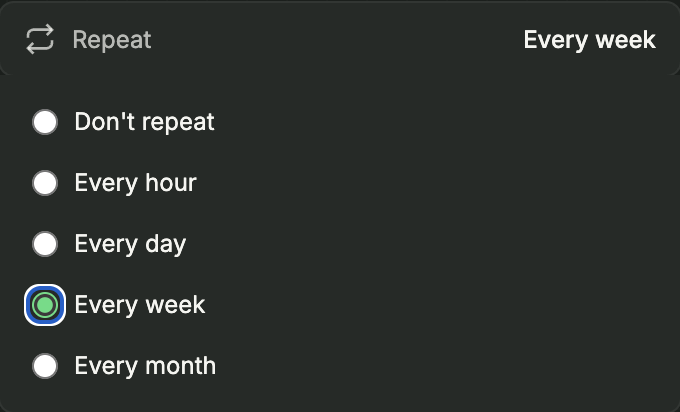
Recurring Reminders screenshot

Recurring Reminders

Set hourly, daily, weekly, or monthly repeating reminders.
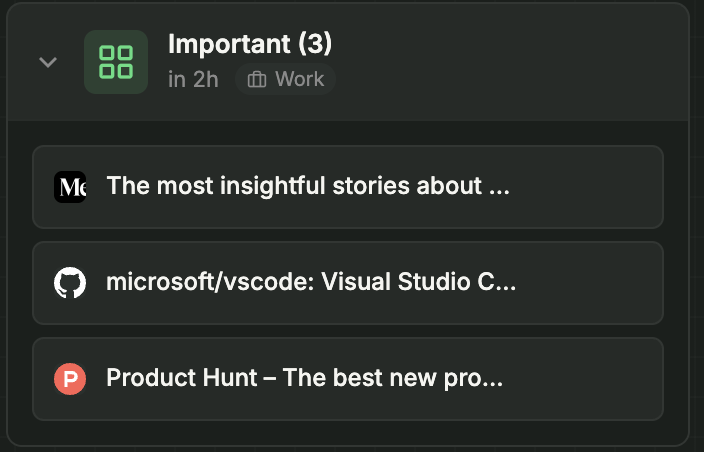
Multi-Tab Groups screenshot

Multi-Tab Groups

Snooze multiple tabs at once. Name your groups for easy organization.

Smart Reminders notification

Smart Reminders

Missed a reminder? No problem. It'll fire when you're back online.
Categories screenshot

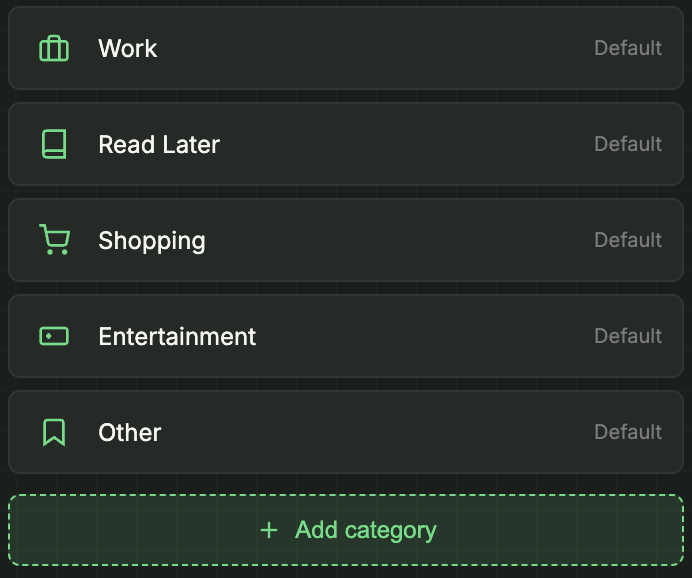
Categories

Organize with custom categories: Work, Read Later, Shopping — you name it.
Notes screenshot

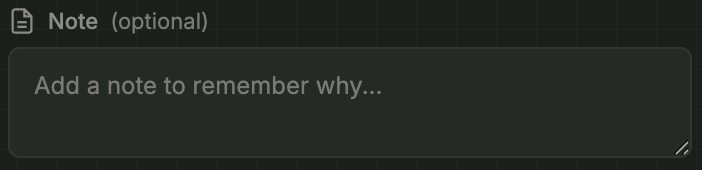
Notes

Add a note to remember why you saved it. Shows up in the notification.

Optional Pro

Your tabs, on every computer

Free PingLater stays on this browser. Pro syncs snoozed tabs, sessions, history, categories, and settings across your devices — when you choose. Start with a 14-day free trial.

Get PingLater — start free trial in Settings

Already have a key? Open Settings → Cloud Sync (Pro) → Activate.

FAQ

Questions? Answers.

Yes. The full snooze experience — reminders, sessions, categories, recurring, export — is free on one device. No account required. Cloud Sync is the only paid option, for people who want the same PingLater data on multiple computers — and it includes a 14-day free trial. You can ignore Pro forever and lose nothing.
Optional Pro with a 14-day free trial. Same license on up to 5 devices. It syncs your snoozed tabs, sessions, history, categories, and settings inside PingLater — not the same as Chrome Sync. Other devices catch up when you open PingLater there (or use Sync now).
Nope! Just install and use. No sign up, no email, no password. Pro only asks for a license key if you turn on Cloud Sync.
If Chrome was closed when a reminder was due, it will fire as soon as you open your browser. You'll never lose a tab.
Yes. Local PingLater works without internet. Cloud Sync needs the network only when syncing.
By default, everything stays on your device. We don't track you. If you activate Cloud Sync (Pro), your PingLater data is sent to our sync server so your other devices can pull it. Free mode never does that. Details in the Privacy Policy.
We're focused on Chrome for now, but Firefox and other browsers are on our radar. Follow us on X for updates!
Troubleshooting

Notifications not working?

macOS

Notifications not appearing?

  1. Open System Settings
  2. Go to Notifications
  3. Find Google Chrome in the list
  4. Enable Allow Notifications
  5. Make sure Focus Mode is off

Windows

Notifications not appearing?

  1. Open Settings (Win + I)
  2. Go to System → Notifications
  3. Make sure notifications are On
  4. Scroll down and find Google Chrome
  5. Enable notifications for Chrome
  6. Disable Focus Assist if active

Still having issues? Make sure Chrome is updated to the latest version and try restarting your browser.

Ready to declutter your browser?

Join the community of people who finally have their tabs under control.

No sign up Works offline Sync optional